Quick Reference
Essential actions for navigating and using the Recall workflow editor
A quick lookup for everyday actions in the Recall workflow editor. For keyboard shortcuts, see Keyboard Shortcuts.
Mod refers to Cmd on macOS and Ctrl on Windows/Linux.
| Action | How | Preview |
|---|
| Create a workspace | Click workspace dropdown → Create new workspace | |
| Switch workspaces | Click workspace dropdown → Select workspace. URL changes to /{orgSlug}/{newWorkspaceSlug}/... | |
| Switch organization | Click workspace dropdown → Click the org name at the top → Select org. URL changes to /{newOrgSlug}/... | — |
| Invite team members | Sidebar → Invite | |
| Rename a workspace | Right-click workspace → Rename | 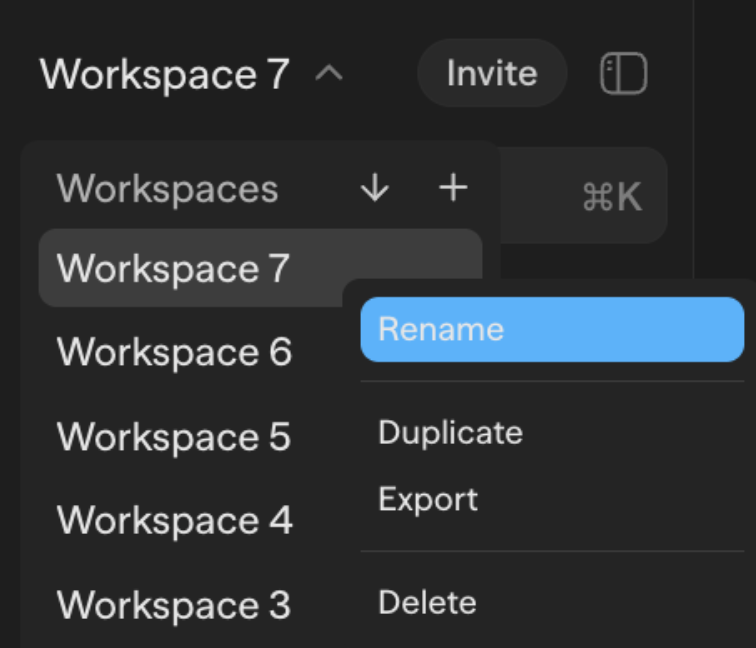 |
| Duplicate a workspace | Right-click workspace → Duplicate |
| Export a workspace | Right-click workspace → Export |
| Delete a workspace | Right-click workspace → Delete |
| Action | How | Preview |
|---|
| Create a workflow | Click + button in sidebar | 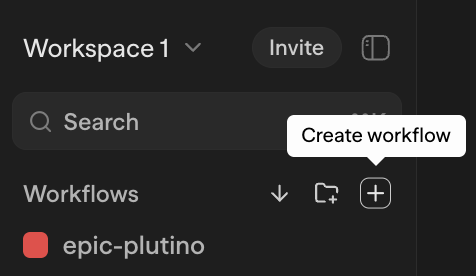 |
| Reorder / move workflows | Drag workflow up/down or onto a folder | |
| Import a workflow | Click import button in sidebar → Select file | 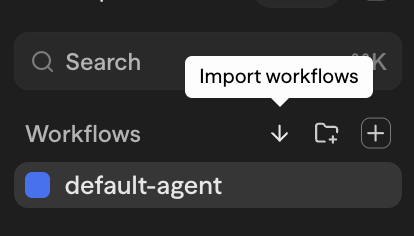 |
| Multi-select workflows | Mod+Click or Shift+Click workflows in sidebar | |
| Open in new tab | Right-click workflow → Open in New Tab | 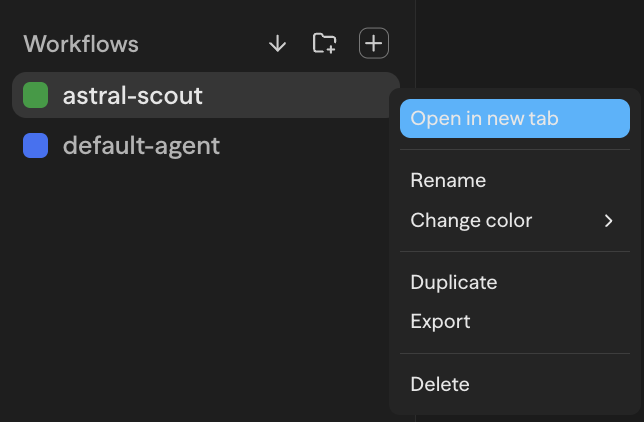 |
| Rename a workflow | Right-click workflow → Rename |
| Assign workflow color | Right-click workflow → Change Color |
| Duplicate a workflow | Right-click workflow → Duplicate |
| Export a workflow | Right-click workflow → Export |
| Delete a workflow | Right-click workflow → Delete |
| Rename a folder | Right-click folder → Rename | 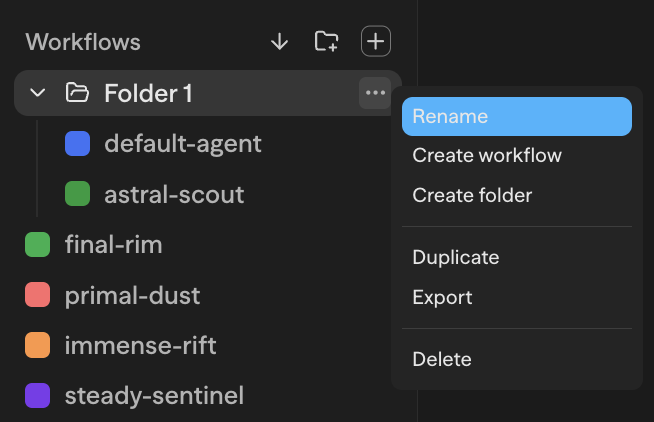 |
| Create workflow in folder | Right-click folder → Create workflow |
| Create folder in folder | Right-click folder → Create folder |
| Duplicate a folder | Right-click folder → Duplicate |
| Export a folder | Right-click folder → Export |
| Delete a folder | Right-click folder → Delete |
| Action | How |
|---|
| Create a chat folder | Sidebar → + menu next to "All chats" → Create folder (give it a name and optional color) |
| Move a chat into a folder | Drag the chat onto a folder, or right-click → Move to folder |
| Move a chat back to root | Drag onto the root drop zone below the chat list, or right-click → Move to root |
| Reorder chats inside a folder | Drag chats to reorder; persists across reloads |
| Reorder folders | Drag a folder header to reposition it in the tree |
| Rename a chat or folder | Right-click → Rename |
| Recolor a folder | Right-click folder → Color → pick a swatch |
| Delete a chat | Right-click → Delete (the chat is removed but the folder stays) |
| Delete a folder | Right-click folder → Delete. Cascades: every chat inside (and any nested folders) is deleted too |
| Expand / collapse a folder | Click the folder header. State is saved per browser |
| Action | How | Preview |
|---|
| Add a block | Drag from Toolbar panel, or right-click canvas → Add Block | |
| Multi-select blocks | Mod+Click additional blocks, or shift-drag to draw selection box | |
| Copy blocks | Mod+C with blocks selected | |
| Paste blocks | Mod+V to paste copied blocks |
| Duplicate blocks | Right-click → Duplicate | |
| Delete blocks | Delete or Backspace key, or right-click → Delete | 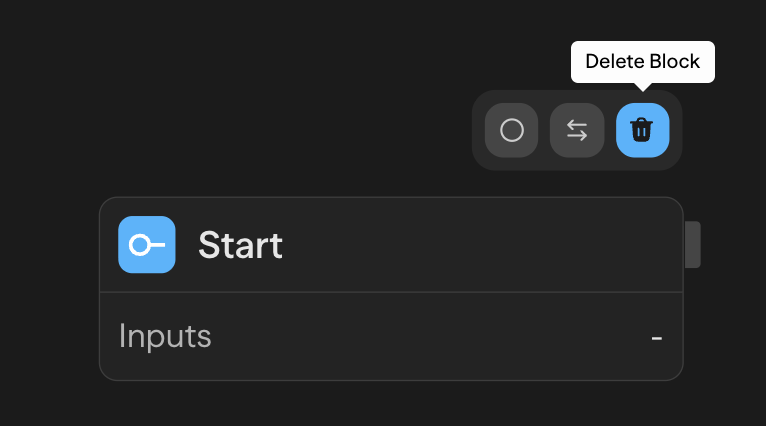 |
| Rename a block | Click block name in header, or edit in the Editor panel | |
| Enable/Disable a block | Right-click → Enable/Disable | 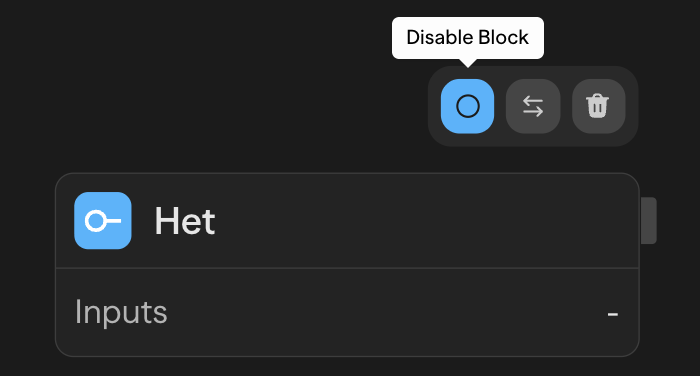 |
| Lock/Unlock a block | Hover block → Click lock icon (Admin only) | 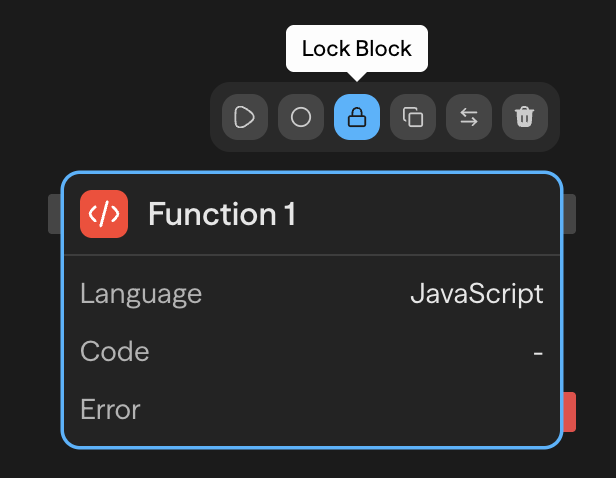 |
| Toggle handle orientation | Right-click → Toggle Handles | |
| Configure a block | Select block → use Editor panel on right | |
| Action | How | Preview |
|---|
| Create a connection | Drag from output handle to input handle | |
| Delete a connection | Click edge to select → Delete key | |
| Use output in another block | Drag connection tag into input field | |
| Action | How | Preview |
|---|
| Search toolbar | Mod+F | |
| Search everything | Mod+K | 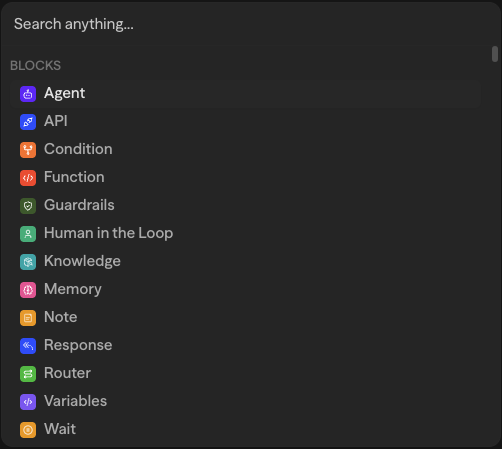 |
| Toggle manual mode | Click toggle button to switch between manual and selector | 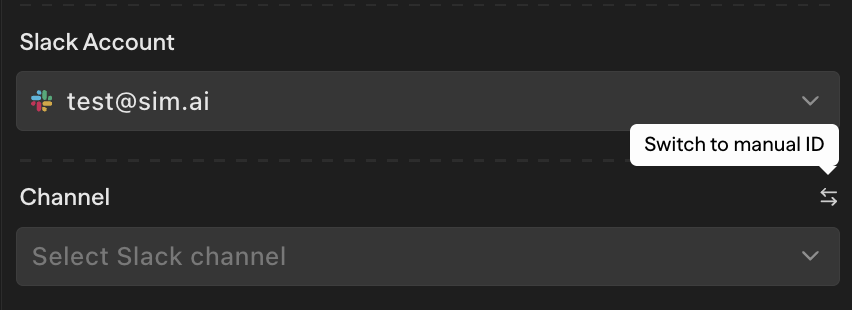 |
| Collapse/expand sidebar | Click collapse button on sidebar | |
| Action | How | Preview |
|---|
| Run workflow | Click Run Workflow button or Mod+Enter |  |
| Stop workflow | Click Stop button or Mod+Enter while running |  |
| Test with chat | Use Chat panel on the right side |  |
| Select output to view | Click dropdown in Chat panel → Select block output | 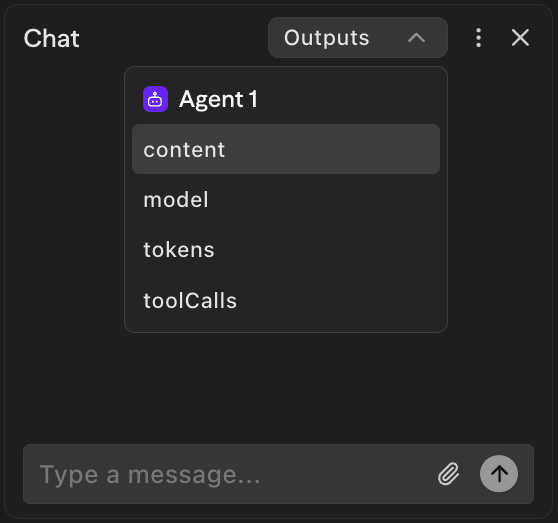 |
| Clear chat history | Click clear button in Chat panel | 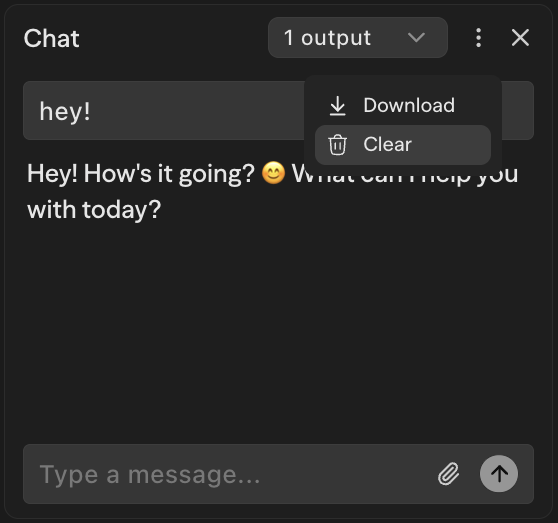 |
| Run from block | Hover block → Click play button, or right-click → Run from block | 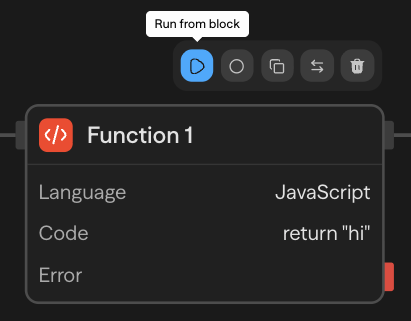 |
| Run until block | Right-click block → Run until block | 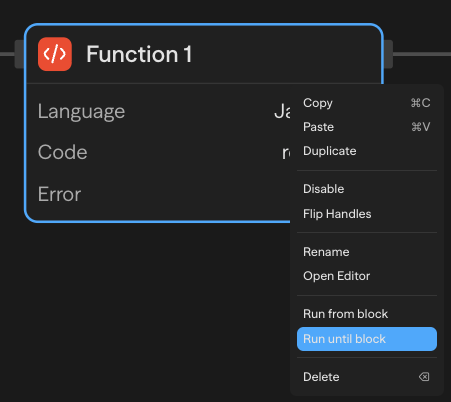 |
| View execution logs | Open terminal panel at bottom, or Mod+L | 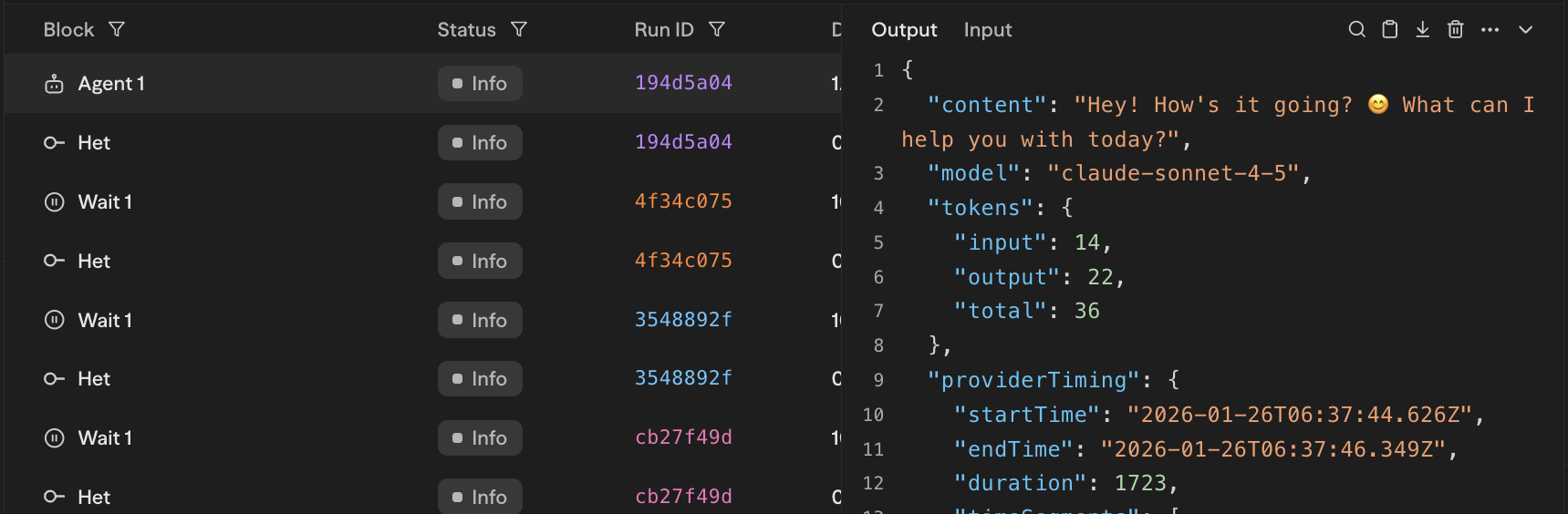 |
| Filter logs | Click filter icon in terminal → Filter by block or status | 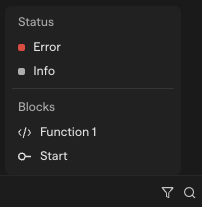 |
| Search logs | Use search field in terminal or right-click log entry → Search | 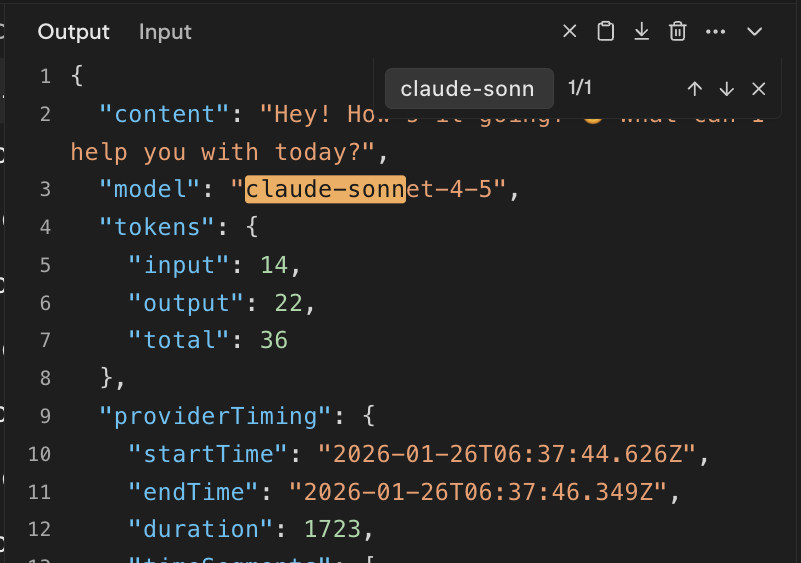 |
| Copy log entry | Clipboard Icon or Right-click log entry → Copy | 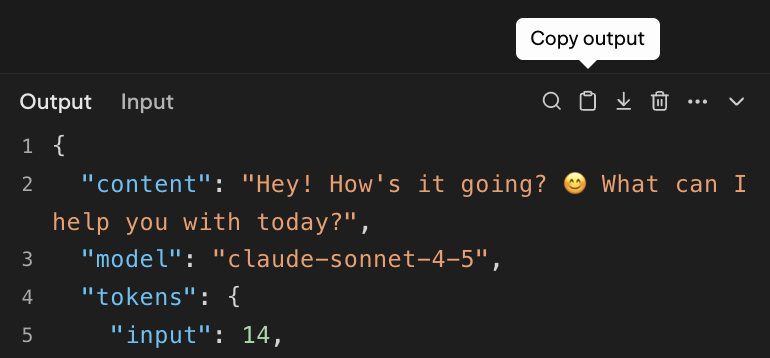 |
| Clear terminal | Trash icon or Mod+D | 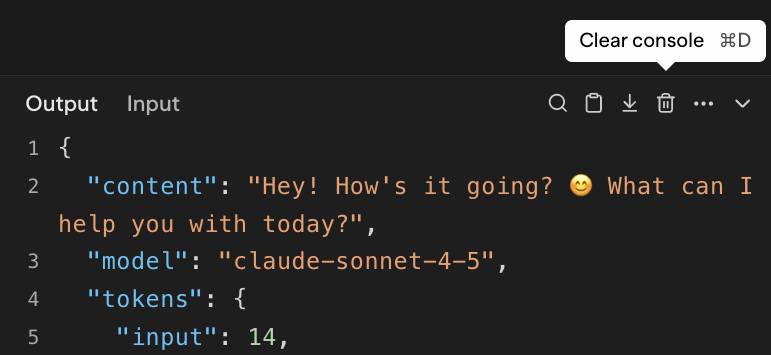 |
| Action | How | Preview |
|---|
| Deploy a workflow | Click Deploy button in panel |  |
| Update deployment | Click Update when changes are detected |  |
| View deployment status | Check status indicator (Live/Update/Deploy) in Deploy tab | 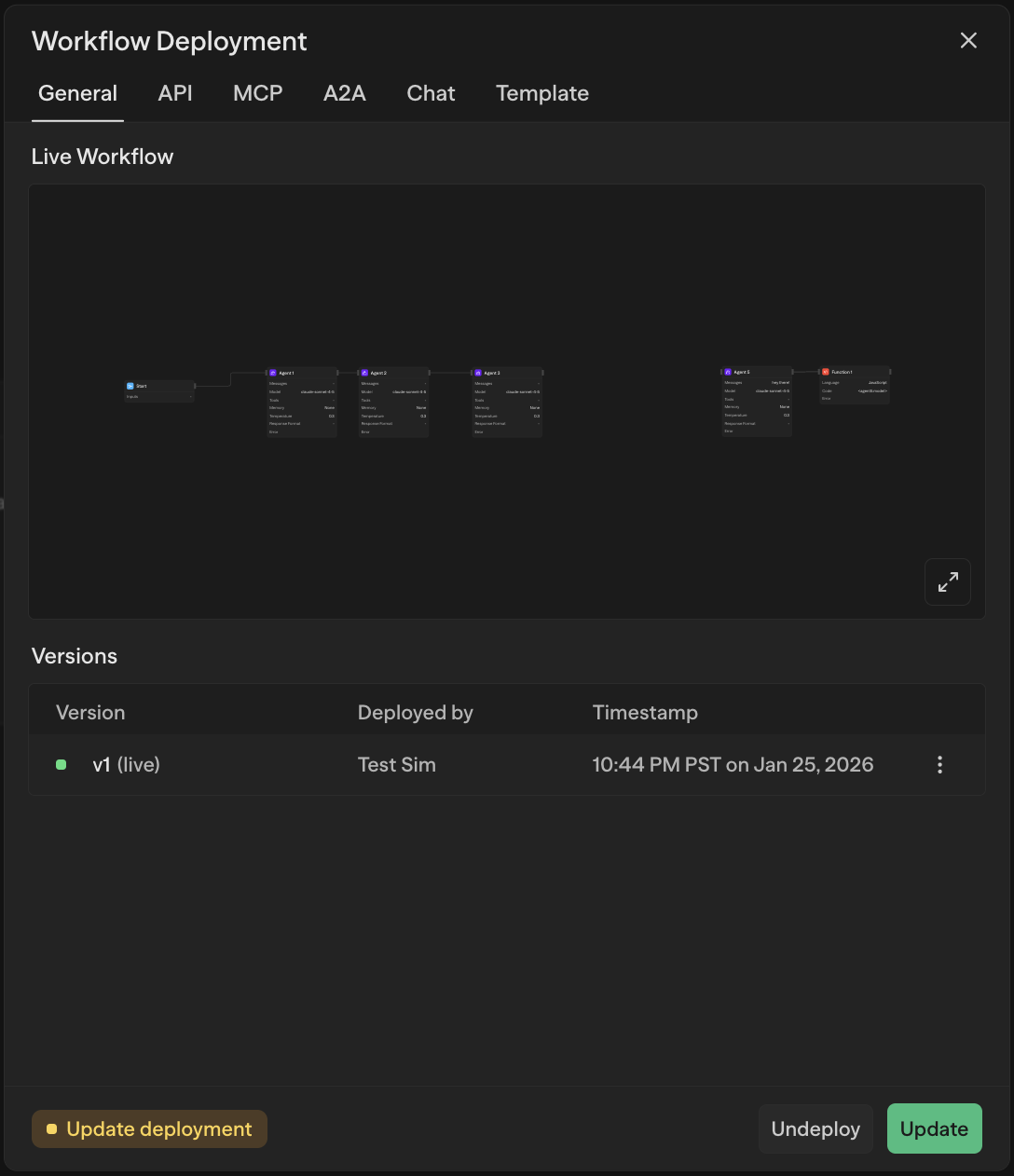 |
| Revert deployment | Access previous versions in Deploy tab → Promote to live | 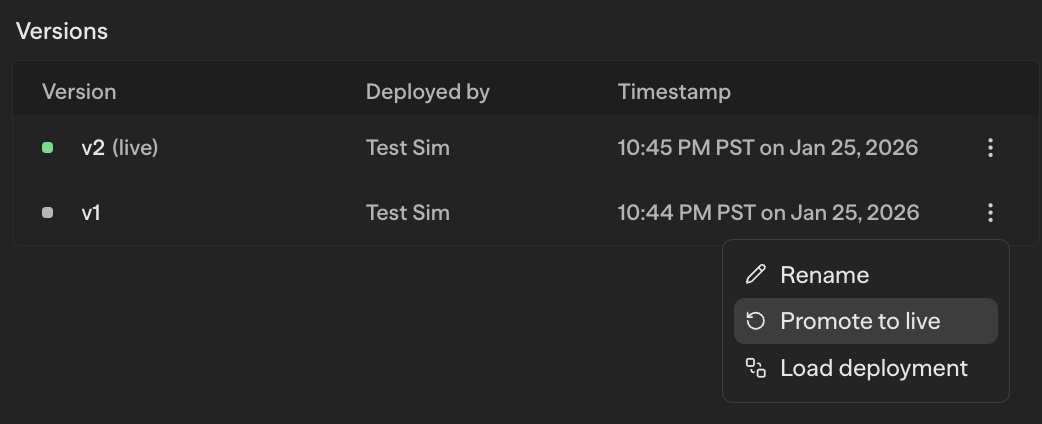 |
| Add version description | Deploy tab → Click description icon → Add or generate description | |
| Copy API endpoint | Deploy tab → API → Copy API cURL | 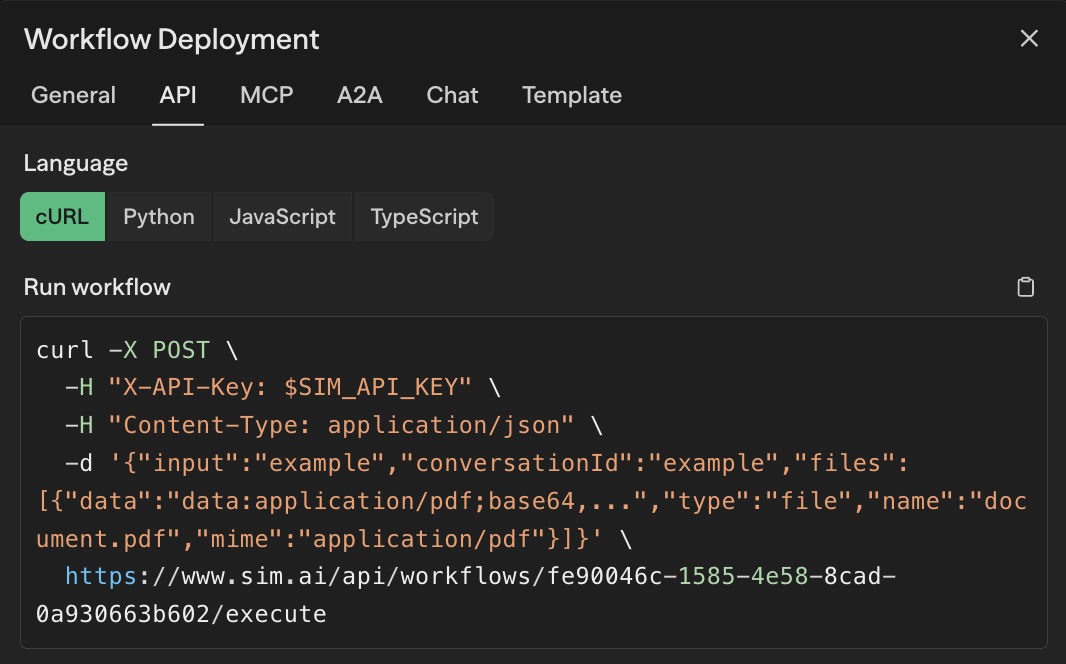 |
| Action | How | Preview |
|---|
| Add / Edit / Delete workflow variable | Panel -> Variables -> Add Variable, click to edit, or delete icon | 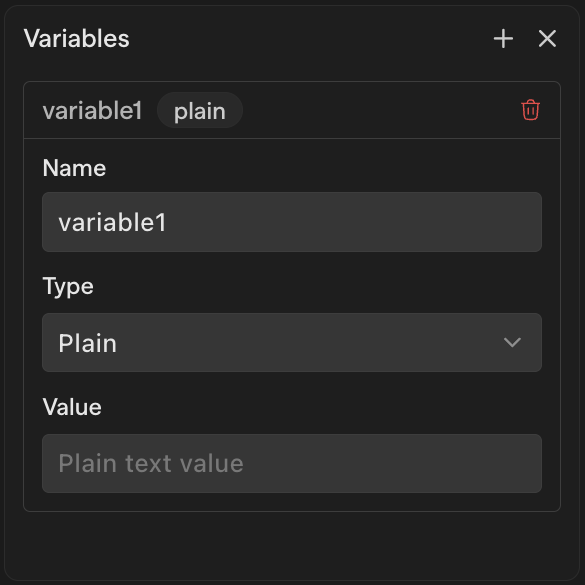 |
| Add environment variable | Settings → Environment Variables → Add | 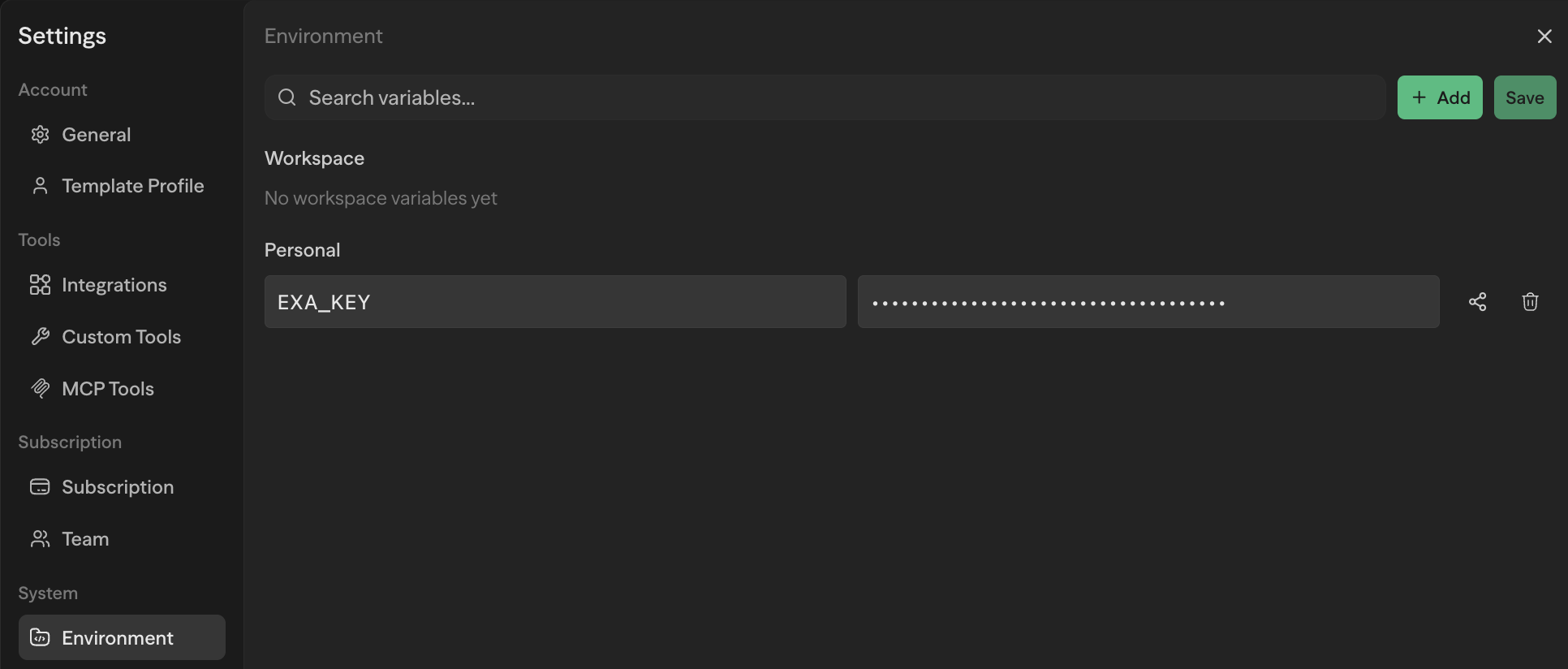 |
| Reference a workflow variable | Use <blockName.itemName> syntax in block inputs | 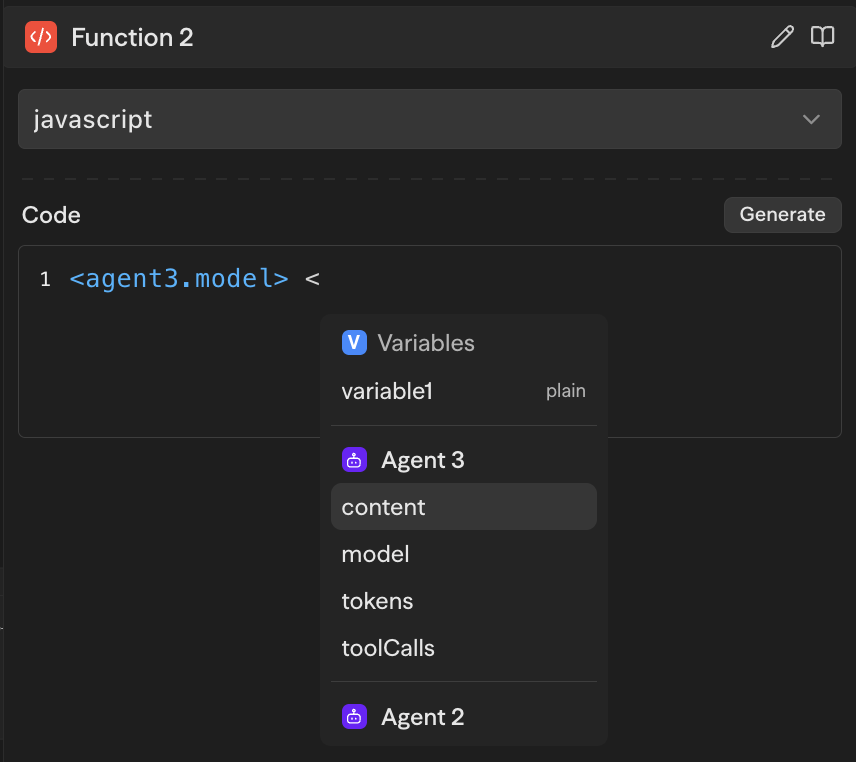 |
| Reference an environment variable | Use {{ENV_VAR}} syntax in block inputs | 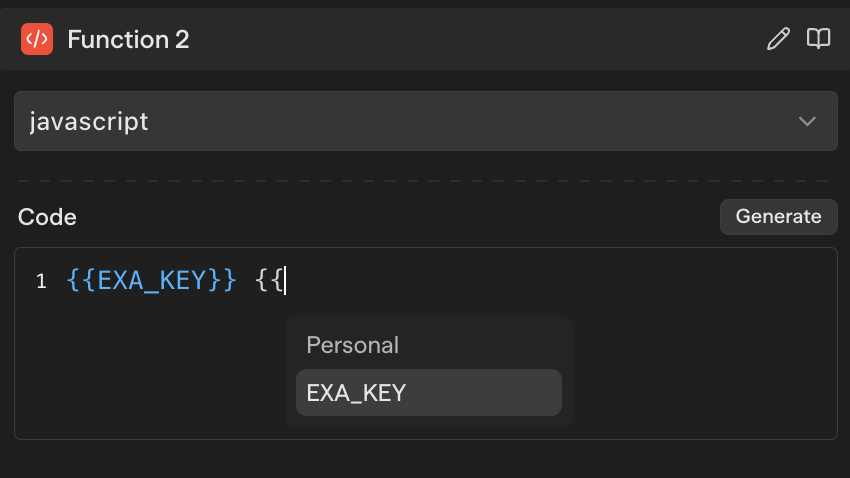 |