The Human in the Loop block pauses workflow execution and waits for human intervention before continuing. Use it to add approval gates, collect feedback, or gather additional input at critical decision points.
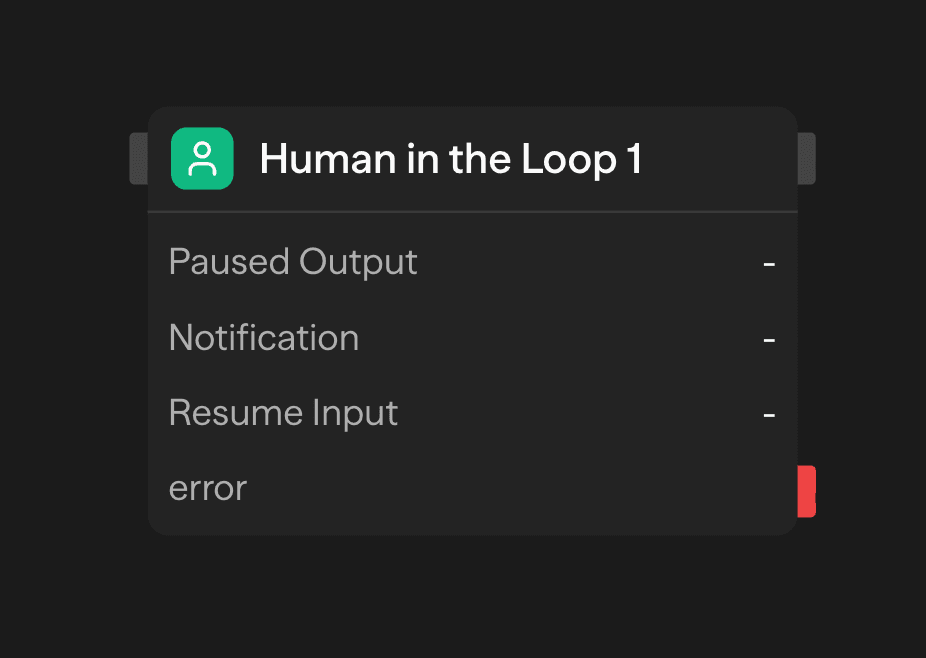
When execution reaches this block, the workflow pauses indefinitely until a human provides input through the approval portal, API, or webhook.
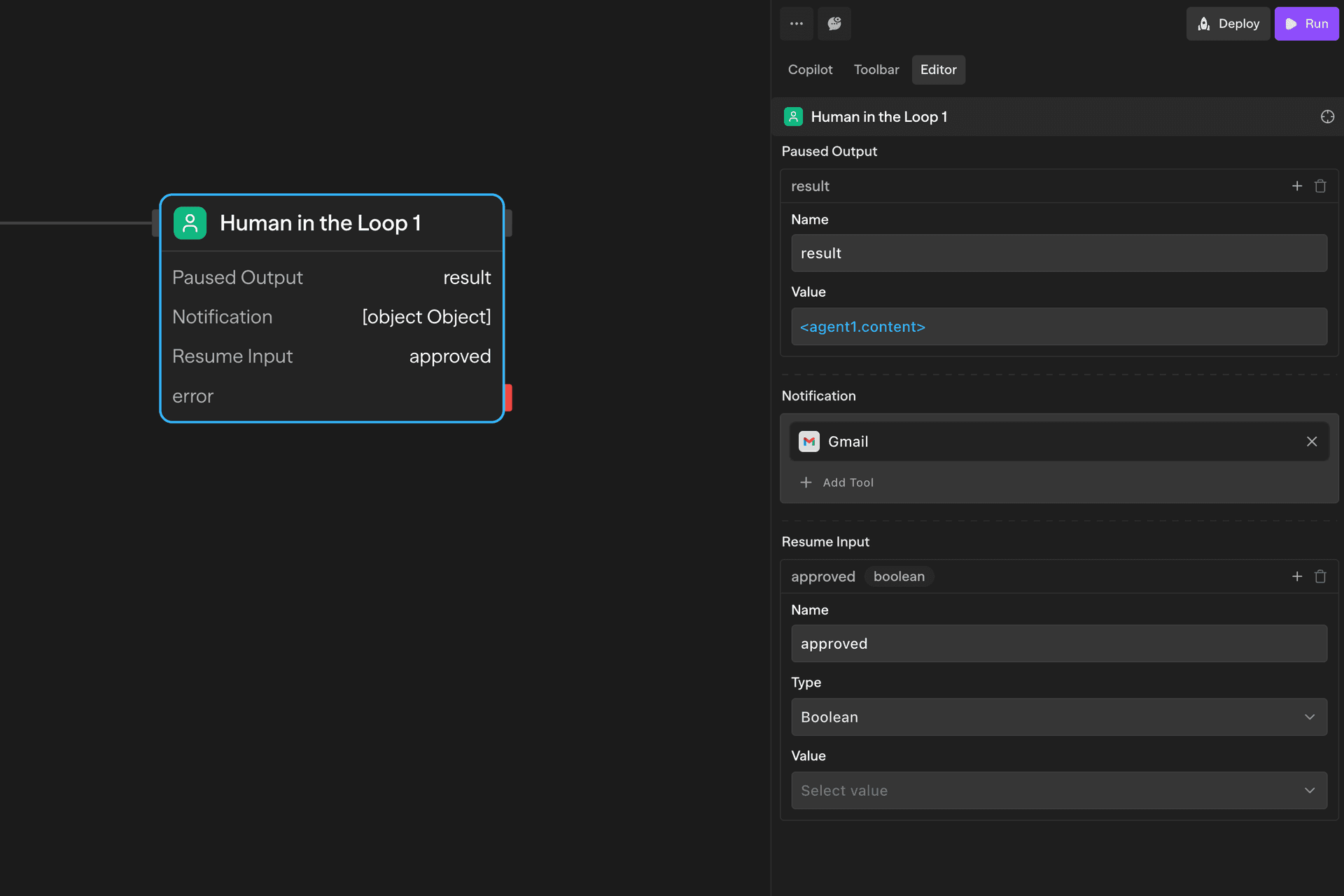
Configuration Options
Display Data
Defines what data is displayed to the approver. This is the context shown in the approval portal to help them make an informed decision.
Use the visual builder or JSON editor to structure the data. Reference workflow variables using <blockName.output> syntax.
{
  "customerName": "<agent1.content.name>",
  "proposedAction": "<router1.selectedPath>",
  "confidenceScore": "<evaluator1.score>",
  "generatedEmail": "<agent2.content>"
}
Notification
Configures how approvers are alerted when approval is needed. Supported channels include:
- Slack - Messages to channels or DMs
- Gmail - Email with approval link
- Microsoft Teams - Team channel notifications
- SMS - Text alerts via Twilio
- Webhooks - Custom notification systems
Include the approval URL (<blockId.url>) in your notification messages so approvers can access the portal.
Resume Form
Defines the fields approvers fill in when responding. This data becomes available to downstream blocks after the workflow resumes.
{
  "approved": {
    "type": "boolean",
    "description": "Approve or reject this request"
  },
  "comments": {
    "type": "string",
    "description": "Optional feedback or explanation"
  }
}
Access resume data in downstream blocks using <blockId.fieldName>.
Approval Methods
Approval Portal
Every block generates a unique portal URL (<blockId.url>) with a visual interface showing all paused output data and form fields for resume input. Mobile-responsive and secure.
Share this URL in notifications for approvers to review and respond.
REST API
Programmatically resume workflows using the resume endpoint. The contextId is available from the block's resumeEndpoint output or from the _resume object in the paused execution response.
POST /api/resume/{workflowId}/{executionId}/{contextId}
Content-Type: application/json
X-API-Key: your-api-key

{
  "input": {
    "approved": true,
    "comments": "Looks good to proceed"
  }
}
The resume endpoint automatically respects the execution mode used in the original execute call:
- Sync mode (default) — The response waits for the remaining workflow to complete and returns the full result:
{
  "success": true,
  "status": "completed",
  "executionId": "<resumeExecutionId>",
  "output": { ... },
  "metadata": { "duration": 1234, "startTime": "...", "endTime": "..." }
}
If the resumed workflow hits another HITL block, the response returns "status": "paused" with new _resume URLs in the output.
-
Stream mode (
stream: trueon the original execute call) — The resume response streams SSE events withselectedOutputschunks, just like the initial execution. -
Async mode (
X-Execution-Mode: asyncon the original execute call) — The resume dispatches execution to a background worker and returns immediately with202:
{
  "status": "started",
  "executionId": "<resumeExecutionId>",
  "message": "Resume execution started asynchronously."
}
Polling execution status
To check on a paused execution or poll for completion after an async resume:
GET /api/resume/{workflowId}/{executionId}
X-API-Key: your-api-key
Returns the full paused execution detail with all pause points, their statuses, and resume links. Returns 404 when the execution has completed and is no longer paused.
Webhook
Add a webhook tool to the Notification section to send approval requests to external systems. Integrate with ticketing systems like Jira or ServiceNow.
API Execute Behavior
When triggering a workflow via the execute API (POST /api/workflows/{id}/execute), HITL blocks cause the execution to pause and return the _resume data in the response:
The response includes the full pause data with resume URLs:
{
  "success": true,
  "executionId": "<executionId>",
  "output": {
    "data": {
      "operation": "human",
      "_resume": {
        "apiUrl": "/api/resume/{workflowId}/{executionId}/{contextId}",
        "uiUrl": "/resume/{workflowId}/{executionId}",
        "contextId": "<contextId>",
        "executionId": "<executionId>",
        "workflowId": "<workflowId>"
      }
    }
  }
}
Blocks before the HITL stream their selectedOutputs normally. When execution pauses, the final SSE event includes status: "paused" and the _resume data:
data: {"blockId":"agent1","chunk":"streamed content..."}
data: {"event":"final","data":{"success":true,"output":{...,"_resume":{...}},"status":"paused"}}
data: "[DONE]"
On resume, blocks after the HITL stream their selectedOutputs the same way.
HITL blocks are automatically excluded from the selectedOutputs dropdown since their data is always included in the pause response.
Returns 202 immediately. Use the polling endpoint to check when the execution pauses.
Common Use Cases
Content Approval - Review AI-generated content before publishing
Agent → Human in the Loop → API (Publish)Multi-Stage Approvals - Chain multiple approval steps for high-stakes decisions
Agent → Human in the Loop (Manager) → Human in the Loop (Director) → ExecuteData Validation - Verify extracted data before processing
Agent (Extract) → Human in the Loop (Validate) → Function (Process)Quality Control - Review AI outputs before sending to customers
Agent (Generate) → Human in the Loop (QA) → Gmail (Send)Block Outputs
url - Unique URL for the approval portal
resumeEndpoint - Resume API endpoint URL
response - Display data shown to the approver (json)
submission - Form submission data from the approver (json)
submittedAt - ISO timestamp when the workflow was resumed
<fieldName> - All fields defined in Resume Form become available at the top level after the workflow resumes
Access using <blockId.fieldName>.
Example
Paused Output:
{
  "title": "<agent1.content.title>",
  "body": "<agent1.content.body>",
  "qualityScore": "<evaluator1.score>"
}
Resume Input:
{
  "approved": { "type": "boolean" },
  "feedback": { "type": "string" }
}
Downstream Usage:
// Condition block
<approval1.approved> === true
The example below shows an approval portal as seen by an approver after the workflow is paused. Approvers can review the data and provide inputs as a part of the workflow resumption. The approval portal can be accessed directly via the unique URL, <blockId.url>.
Related Blocks
- Condition - Branch based on approval decisions
- Variables - Store approval history and metadata
- Response - Return workflow results to API callers